Buying and opening Shadowrocket on iPhone
On your iPhone, open the verified Shadowrocket product page in the App Store and check the price, compatibility and account status. Refer to the App Store listing for system requirements; don’t rely on older requirements quoted elsewhere. Before confirming payment, check the app name, amount and Apple Account in the purchase confirmation, then authenticate as required by the system.
From purchase confirmation to Home
After payment, wait for the App Store to finish installing Shadowrocket, then open it from the Home Screen or App Library. If the store still shows processing, check the purchase status and network before trying to pay again. Installing the app and establishing a connection are separate steps: installation means the client is ready, not that server details are available.
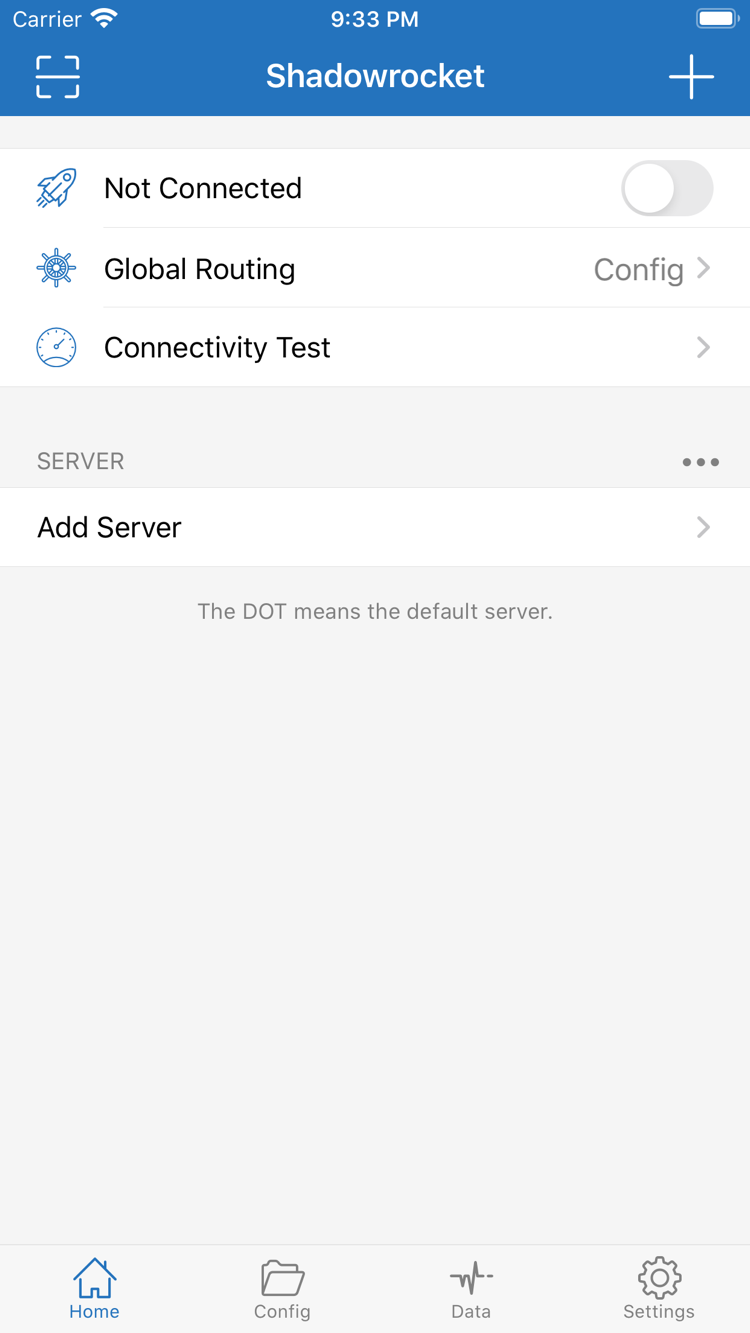
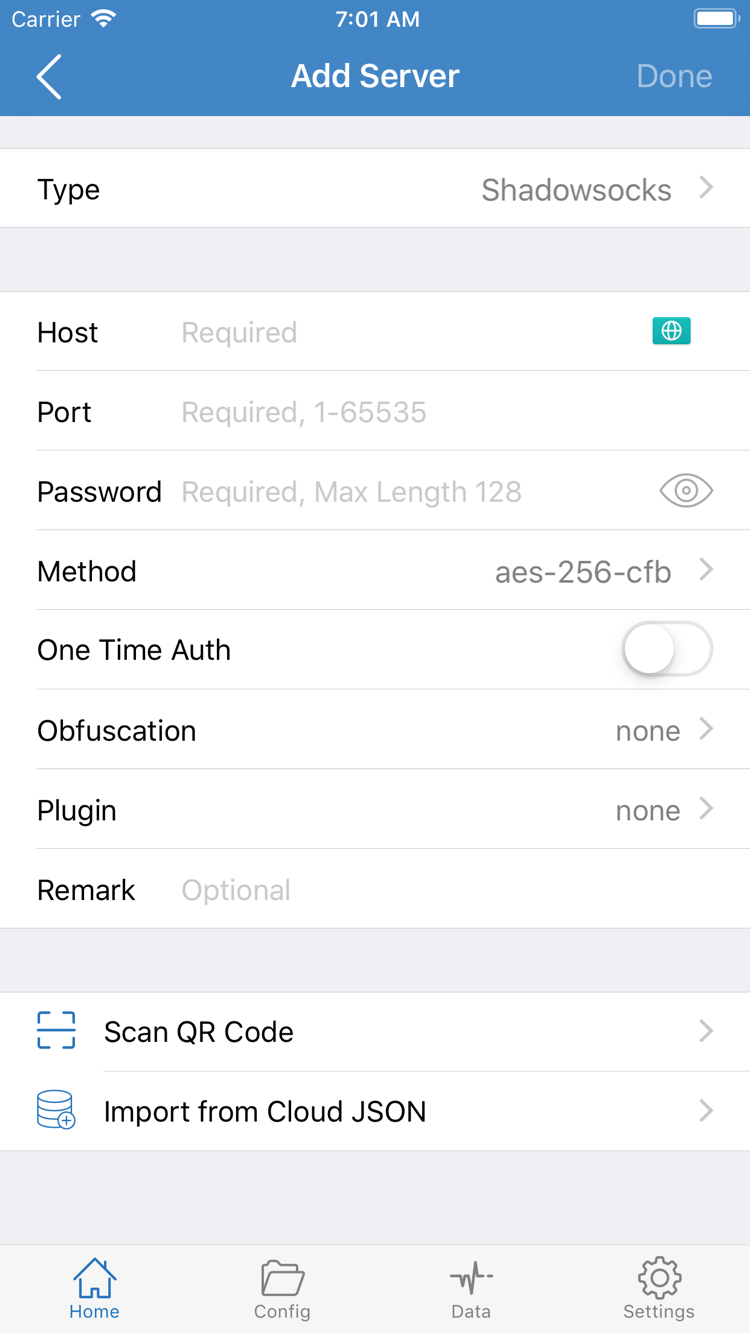
The connection switch may show Not Connected the first time you open Home. Make sure you have your own subscription or server details, then import them in the appropriate format. To enter details manually, use Add Server and fill in Type, Host, Port and the relevant authentication fields based on your actual information. Fields vary by Type; don’t add arbitrary values just to complete the form.
What the “Add VPN Configurations” prompt means
When you first try to connect, the system may ask to let Shadowrocket add VPN configurations. This authorizes the system to register a network connection configuration and is separate from App Store payment. Confirm that the prompt names the Shadowrocket you just installed, then choose whether to allow it and authenticate as required by your device. Allowing this prompt won’t fill in server details automatically.
If you previously denied the request, return to the app and try connecting again to see whether the system prompts you. If the configuration was removed, start a new connection through the app rather than editing system settings manually when you’re unsure which fields to use. The VPN section in Settings can help confirm whether a connection configuration exists; its location depends on the system version.
After importing your details, check Global Routing. Config follows the configuration’s rules, Proxy uses the proxy policy, and Direct uses the direct connection policy. An enabled switch, a VPN indicator in the system and successful access are not necessarily the same result. For connection checks and troubleshooting steps, see the quick start tutorial.