Chapter 1 · App availability
Store region and app availability
Your storefront determines availability; your location does not
The App Store displays available content based on the country or region of your store account. Your device’s physical location, system language, and store account region are separate details and cannot be used interchangeably. For example, setting your system language to English does not change the storefront associated with your account. Being in another country or region does not mean the App Store has switched to that storefront. If you can’t find Shadowrocket, first check the region of the account you use for purchases, rather than changing your device language.
An app’s availability and listing may vary between storefronts. If Shadowrocket doesn’t appear in the mainland China storefront, that doesn’t mean its name has changed, that the app has disappeared from your device, or that it is unavailable in every storefront. Search results only show what the current search returns. The key details to check are which storefront your account uses and whether it lists the app with ID 932747118.
Search results vs. the product page
Search results depend on your search terms, storefront, and ranking; a product page links directly to a specific app. Search for the full name, Shadowrocket, rather than an informal nickname. Then open the App Store product page via our authenticity check page. If search returns no results but the product page loads, verify the product details instead of assuming it cannot be purchased.
The product link used on this site includes the US storefront path. That path identifies the product; it does not change your account’s country or region. Opening the link in a browser also doesn’t mean your account is eligible to purchase the app in its own storefront. The system may prompt you to switch storefronts or show that the app isn’t available in your region. If so, note the exact message and check your account region. A price shown in US dollars on a webpage is not evidence that your account’s region has changed.
Changing regions involves account requirements
Changing your country or region is an Apple Account setting and may affect your account balance, active subscriptions, pending transactions, payment method, and Family Sharing group. Follow the requirements shown in Apple’s current interface. Before changing regions, consider how the change may affect existing purchases and services, and make sure you can provide valid billing and payment details for the destination storefront. Changing regions in a hurry just to clear a search issue can turn an app availability question into an account billing problem.
If the system lists requirements you haven’t met, address them one by one instead of repeatedly submitting the same request. Avoid changing account settings before confirming which account owns the original purchase; otherwise, you’ll have several variables to troubleshoot at once. Changing regions does not verify that an app is official, nor does it guarantee that every past purchase will remain available to download in every storefront. If you may need to install the app on another device later, check your purchase history and current availability before making changes.
Use observable results to decide what to do next
At the end of this chapter, you should be able to describe the result precisely—for example, “The current storefront returns no search results, but the product page is available” or “The product page says the app isn’t available in my region.” This is more useful than a general “I can’t download it.” In the first case, check the account used in the App Store and how the page opens. In the second, check whether the app is available in your storefront. Only after the page displays correctly and lets you obtain the app should you check payment, the download queue, and device compatibility.
What checking your region can—and can’t—tell youYour store region is an account setting; it is not determined by your system language or a webpage address alone. For more on checking app availability, see How to check your Apple ID region and App Store availability.
Chapter 2 · Which storefront does your account use?
Check your App Store storefront and purchase account
First identify the account used for media purchases
On iPhone and iPad, the account used for iCloud may differ from the one used for media and purchases. The name at the top of Settings alone doesn’t confirm which account owns your App Store purchases. Open your Apple Account settings and check the account shown under “Media & Purchases,” then review the details on your App Store account page. Interface labels and menu locations may change with system updates; follow what appears on your device.
Complete this check before paying or restoring a purchase. If you remember buying the app but haven’t confirmed which account you used, a new device may show a price instead of a redownload button. Don’t pay again right away. First identify the personal account linked to the original transaction, check whether it matches the current Media & Purchases sign-in, and then decide whether to restore the purchase. Who owns the device or whose data is stored in iCloud is separate from who owns a particular store transaction.
Check the country or region on your account
A common path is to open Settings, tap your Apple Account, select “Media & Purchases,” then open “View Account” and choose “Country/Region.” The system may ask you to verify your device or confirm your account again. You can also open account settings from the profile button in the App Store and check the region there. The goal is to read the current setting, not change it. If you don’t need to make a change, simply exit when you’re done.
After checking the region, also confirm that the payment and billing details are valid for that storefront. Don’t treat the bank card’s country of issue, device language, or the language of an email as definitive proof. The currency on a product webpage is only a clue, since the page may be using a different storefront path. If the account page and webpage don’t match, rely on the account used to make purchases on your device and the payment confirmation screen, and note the discrepancy.
Keep a concise but useful record
You can make a local note with four details: an identifying portion of the Media & Purchases account, its country or region, the product page button state, and the exact system message. Record only enough of the account to recognize it; there’s no need to copy all your personal information. Describe the button as showing a price, cloud icon, Get, Open, or Waiting. Note whether you saw it in a browser or the App Store, since the two may use different account sessions. Comparing screenshots without that context can lead to the wrong conclusion.
When describing an issue to someone else, share only the details needed to troubleshoot it. Never send your password, payment security code, verification code, or full billing address. Redact personal details from transaction records first. None of the checks in this guide require you to share that information publicly. If a family member is helping with setup, have the account holder confirm the storefront and transaction ownership on their own device. “Someone installed it before” is not a substitute for verifiable purchase records.
Don’t repeatedly sign out just to check your account
Checking your region and purchase history usually doesn’t require signing out of your entire Apple Account. Repeated sign-outs can trigger extra verification, syncing, or purchase authorization prompts, and may make the original issue harder to reproduce. Do read-only checks first, then decide whether you need to change the Media & Purchases sign-in. Signing out of iCloud is not a general fix for App Store issues. Before switching accounts, make sure the account holder can complete verification.
By the end of this chapter, you should be able to answer three questions: Which personal account is being used to make purchases? Which region is it set to? Is the original transaction linked to that same account? If any answer is unclear, find the original purchase record before proceeding. If all three match but you still can’t obtain the app, go to Troubleshooting acquisition issues and check the transaction, restrictions, or download queue based on the specific message—not by repeatedly changing regions.
Chapter 3 · Verify the exact app
Developer, official icon, and app ID
All three details must identify the same app
To verify the official Shadowrocket app, don’t rely on the name alone. Confirm that the developer is Shadow Launch Technology Limited, the icon matches the official icon shown on this site, and the product URL contains app ID 932747118. Search results may include similar names or descriptions, so the name by itself isn’t enough. Check all three details on the same product page or its corresponding URL rather than piecing them together from different results.
The official icon has a white background and a blue-violet outlined design. The icon shown here is for visual comparison, not a separate purchase link. Compare the design itself, not the rounded corners or thumbnail size added by the system, or differences in screen brightness. A blue icon alone doesn’t identify the app. In crowded search results, open the product details and check the developer field before selecting an app.
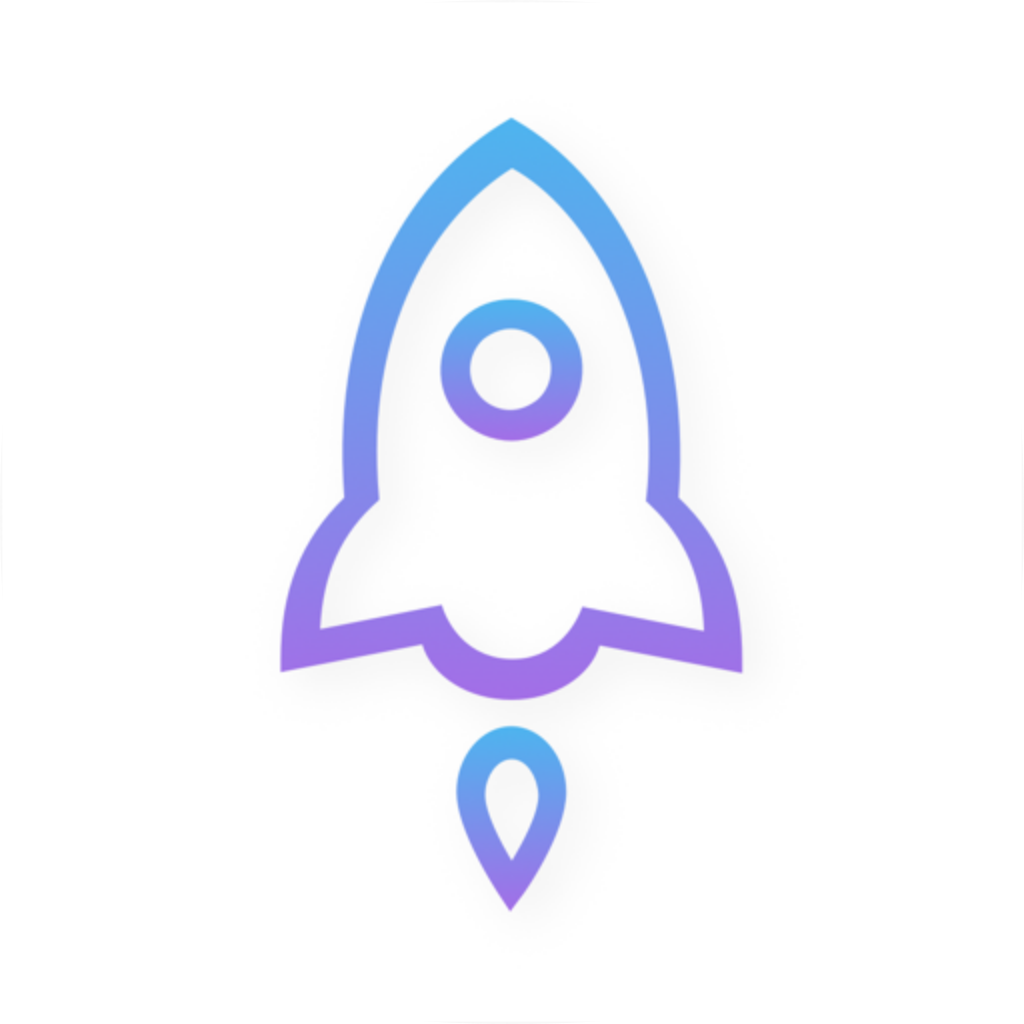
Shadowrocket
Use this to check the icon; also verify the developer and app ID.
Check the developer field, not promotional copy
Look for the developer or seller information on the product page and compare the full English name. A short subtitle, category, search keyword, or nickname in an article is not the developer field. Some listings truncate long text on smaller screens. If the name is cut off, open the details or expand the relevant information; don’t draw a conclusion from the first few visible words. This guide uses the full name so you can compare it across different views.
If the developer name doesn’t match, stop the purchase and return to the official app page on this site to open the product again. There’s no need to infer that it’s the same app from feature descriptions: terms about routing rules, protocols, or connections aren’t unique identifiers. Verify the purchase target before paying rather than trying to determine whether you bought the right app based on a similar-looking interface afterward.
The app ID is a stable identifier in the link
The specified product URL ends with id932747118. The number is the app ID; the storefront path and readable name are other parts of the URL. Check that the full number matches—don’t stop at confirming the domain. If you can’t see the address after opening the App Store, reopen the product from the clearly identified official app verification section on this site, then confirm the developer and icon as well.
| Check | What to look for | Common mistake |
|---|---|---|
| Developer | Shadow Launch Technology Limited | Mistaking the subtitle for the developer name |
| Official icon | Matches the official icon shown here | Judging by similar colors alone |
| App ID | 932747118 | Confirming the store URL but not the app |
Keep a record to identify the app after purchase
After purchasing, you can check the app name and transaction ownership in your App Store purchase history. A receipt helps locate a transaction; it doesn’t confirm device compatibility or provide connection details. Once the app is installed, its displayed name, cached system icon, or position on the Home Screen does not replace verification of the original product. If you’re moving to a new device, finding the app in your purchase history is more reliable than choosing from search results based on memory.
If all three details match but the product page says you can’t purchase the app, check the storefront, account, transaction, or device requirements instead of searching for another result with the same name. If you bought an app that doesn’t match all three details, address that transaction in your own App Store purchase history. Don’t apply another app’s behavior to Shadowrocket instructions. The tutorials, configuration guides, and troubleshooting on this site are for the Shadowrocket app verified here.
Chapter 4 · What the price covers
Purchasing Shadowrocket and one-time payment
Check the price, then confirm what you’re buying
Shadowrocket is a paid app on the App Store, sold as a one-time purchase. The US storefront price is listed as $2.99 for reference; check the App Store page for the current price. Other storefronts show local currency, and the payment confirmation screen shows the final charge. Prices and tax display can vary by storefront, so don’t treat a price mentioned in an article as a permanent promise. Before paying, verify all three official app details and review the system’s payment information.
The price on the purchase button is for the app, not a connection service. If the system asks you to verify a payment method, provide billing information, or resolve an outstanding account balance, follow the prompts to address that issue. Payment depends on your App Store account and billing requirements; you can’t complete it by changing settings in Shadowrocket. There’s no point adjusting configuration files or subscriptions before the app is installed. Finish checking the store first.
An app purchase and a connection service are separate
A one-time client purchase ≠ a service plan. A one-time purchase covers how you obtain the app; it does not include a server, subscription link, or service period. To connect, you need your own subscription or server information and must import it into the app. Service duration, data allowances, and connection permissions depend on your existing relationship with your service provider; you can’t infer them from the App Store price.
Likewise, an existing subscription does not replace purchasing the app from the store, and seeing that the app is purchased does not prove that a subscription is still active. Check these separately. If a subscription won’t update, check the existing link and network conditions. If the store still shows a price, check the purchase account and history. Keeping these charges and entitlements separate can help prevent you from thinking you need to buy the app again when a connection fails.
What a one-time purchase meansYou’re purchasing the right to use the Shadowrocket app. You manage your own connection details; this guide does not provide, sell, or recommend nodes or subscriptions.
Buttons and transaction status after purchase
After you confirm the purchase, the App Store typically starts the acquisition or download process. If the device meets the requirements, the button status will change as the process continues. If the payment shows as successful but the page is still waiting, check the download queue and purchase history before taking action. Don’t pay again just because the page hasn’t refreshed. A brief network interruption, a stale store session, or other apps in the download queue can leave the screen in a transitional state. Check the message before proceeding.
If you receive a payment notification while the App Store transaction is still pending, continue checking the account’s purchase history and the system message. Payment provider notifications and the final App Store transaction status may not update at the same time; a single notification does not confirm that the app is ready to obtain. Note the app name, button status, and exact message. For billing issues, the account holder should use Apple’s account and support channels. Don’t send payment details to this site.
If the price appears again, don’t buy it again right away
If you’ve already purchased the app but see a price on another device, first check that the Media & Purchases account is the same, that the product is the same app, and that it’s available in the current storefront. Purchase history and installation status are separate: an app on your phone doesn’t prove that the currently signed-in account owns it, and its absence from your phone doesn’t mean the purchase history is gone. See New devices and restoring purchases for the checks to complete before restoring.
App updates are delivered through the App Store’s standard update process. Check your device’s App Store settings to see whether automatic app updates are enabled. System requirements and the scope of any universal purchase are as listed on the App Store page. A one-time purchase should not be taken as a guarantee for every future device, storefront, or related service. If the scope of an entitlement is unclear, read the product page before purchasing or restoring the app.
Chapter 5 · Restore an existing purchase
New devices, reinstalling, and restoring purchases
Confirm the original purchase account before restoring
When moving to a new device or reinstalling, first identify the personal account that originally purchased Shadowrocket. Signing in to iCloud on a new device doesn’t necessarily mean the Media & Purchases account is the same one. Follow Chapter 2 to check “Media & Purchases,” then look in the App Store app list, purchased items, or purchase history. Menu names can vary across system versions, but the goal is the same: find Shadowrocket obtained with the original account rather than starting a new purchase.
If you can’t remember which account you used, check Apple transaction emails and purchase histories for your accounts to confirm the app name and associated account. Don’t assume that the account is correct just because the app still opens on an old device; the installation may predate the current sign-in. The app’s custom name on the Home Screen is not proof of the original transaction either. You’re restoring the store purchase entitlement, so rely on account records and the product page for the same app.
Redownload the app from your list
Open your App Store account, find your own apps or purchased items, and search for Shadowrocket. If the list has a filter such as “Not on this device,” use it to narrow the results. Before tapping the redownload button, verify the developer and icon. Button designs may change between system versions; what matters is that the page is for the original app and the system recognizes that your current account is eligible to obtain it.
If the app isn’t in the list, check the account, filters, hidden purchases, and purchase history in that order. Purchased items make redownloading easier; transaction history helps verify a purchase. A hidden item doesn’t necessarily mean that no purchase occurred, but the ability to redownload may still depend on the current storefront and device requirements. Don’t try to restore a purchase you haven’t found by repeatedly deleting other apps or erasing your device.
Restoring the app does not restore its configuration
Redownloading the app only confirms that the client has been reinstalled on your device. Whether your previous servers, subscriptions, configuration selections, and other local settings return depends on your backup and app data migration. Before deleting the app, understand how the system handles its data and make sure you can retrieve your existing subscription or server information. Don’t assume the store purchase history also saves all your connection settings.
After moving to a new device, open the app and check its existing data before connecting; seeing the icon isn’t enough. Check whether your subscription is present, which configuration is selected in Config, and the current Global Routing setting, then verify it using the Quick Start Guide. If your data didn’t migrate, reimport the original information you kept. Avoid sharing a complete subscription link in public posts or screenshots; it may contain sensitive details.
Identify why a restore is blocked
If the original purchase exists but the device is reported as incompatible, check the product page’s compatibility section. System requirements are as listed on the App Store page. If the message says the app isn’t available in your region, check your storefront. If it reports a payment or account issue, resolve the account’s billing status. These are separate device, storefront, and transaction requirements. Repeatedly searching your purchased items won’t remove these restrictions, and purchase history doesn’t guarantee that the app can be redownloaded under every circumstance.
On iPhone and iPad, you can redownload the app from the product page using the same purchase account if compatibility and purchase requirements are met. The App Store page lists the scope of any universal purchase. Check the compatibility of Mac, Apple TV, and Apple Vision on that same product page; don’t infer entitlement from the device name. If you already know which device you’re moving to, check compatibility before planning the migration or erasing data from your old device.
The final checkpoint for this chapter is: “The app opens, the source of my connection details is still accessible, and I’ve verified the current configuration.” The handoff from restoring the purchase to getting ready to use the app is complete only when all three are true. If one isn’t, keep the old device and original information while you investigate. In particular, don’t treat deleting the app from your old device as part of the restore process until you know you can reimport your existing details.
Chapter 6 · Check eligibility for family members
Family Sharing eligibility and limitations
Check the product page before your Family Sharing settings
Family Sharing is an Apple Account feature, not a connection toggle in Shadowrocket. First check whether the current App Store product page lists Family Sharing and explains its terms. Then check purchase sharing in your family group settings. Availability, eligible members, and requirements are as stated on the current store and system pages. Joining a family group alone doesn’t prove that a member can obtain any particular app.
Distinguish four separate states: the family group exists, purchase sharing is enabled, the app is eligible for sharing, and the member can actually see the item. These states are related, but they are not the same. The organizer’s transaction may not appear in every member’s list. A member’s App Store may open normally, but their account region and family settings may not meet the requirements. Check each item in order rather than assuming the app is at fault after checking only one.
Check from the family member’s own account
If eligible, a family member should sign in with their own account, open the App Store section for family purchases, and search the purchasing member’s apps for Shadowrocket. Menu names depend on the current device interface. Verify the developer, official icon, and app ID before proceeding. The name shown in a family member’s list may be cached; opening the product details and checking them first helps avoid selecting the wrong result.
If the app isn’t listed, first confirm that the purchasing member owns it, purchase sharing is enabled, and the item isn’t hidden. Then check the member’s account region and system requirements such as age or content restrictions. Don’t treat the app being installed on the purchasing member’s device as proof of Family Sharing eligibility; it may have been installed using another account, or the current family settings may have changed. Base your decision on the transaction and purchase-sharing settings.
Purchase eligibility does not include connection details
Even if the system lets a family member obtain the app, that does not automatically give them access to another person’s subscription, server settings, or connection permissions. The app purchase and access to a connection service are separate. Each user should make sure they’re authorized to use the relevant information and follow the existing service terms. This guide explains how to obtain the app and import data; it does not infer how many devices or people a service allows.
Don’t assume configuration data is automatically shared through Family Sharing. After opening the app on their device, each member should check Home, Config, and Global Routing for themselves. If they need to import existing information, its owner should provide it appropriately; don’t share complete subscription links publicly. Turning on purchase sharing won’t fix an expired subscription or replace the system VPN configuration authorization required for the first connection.
Handle payments, approvals, and family group changes separately
Family payment arrangements, purchase requests for child accounts, and content restrictions can affect how an app is obtained. If the system says approval is needed, check the approval status in Family settings. If it reports a billing issue, check the applicable payment arrangement. Don’t repeatedly tap the price button to test whether approval went through, or remove a family member just because the app temporarily isn’t listed. Changes to family settings may affect other content; understand the system message and its consequences first.
After a family member leaves the group, purchase sharing settings change, or an account region is changed, you may need to recheck eligibility to obtain or update the app. Before making changes on an important device, record the current purchase ownership and make sure personal data is backed up appropriately. “I was able to download it before” doesn’t mean eligibility will remain the same under every family group setting. For transaction disputes, the account holder should contact Apple through its account and support channels.
Sharing applies only to eligible purchasesCheck the store listing and Family Sharing requirements before checking the member’s list. The app purchase, data saved within the app, and access to an existing connection service are three separate things to verify.
Chapter 7 · Troubleshoot by where it fails
Can’t find the app, purchase issues, and stalled downloads
Locate the failure before resetting your device
“I can’t download it” might mean no search results, a product page that won’t open, a declined payment, a stalled download, or a connection failure after installation. First note the last step that worked and the first one that failed. For example, “I can see the correct app, but my payment was declined” and “My payment went through, but the download is waiting” require different checks. Troubleshoot one layer at a time. Avoid changing accounts, changing networks, and deleting data all at once, so you can tell which action made a difference.
If search returns no results, use the full app name and the product link from this site, then check your storefront as described in Chapters 1 and 2. If the correct product page says the app isn’t available in your region, check your account storefront and app availability. If it says your device is incompatible, check the compatibility section. If the webpage displays the app but the App Store won’t let you obtain it, record the results separately for the browser and the App Store. A visible webpage doesn’t prove that a purchase will succeed.
Address account, payment, and restriction messages first
If the system asks you to verify your account, accept account terms, confirm billing details, or resolve an incomplete transaction, handle that account issue first. These are App Store requirements; changing a subscription in Shadowrocket won’t help. Purchases and app installations may also be restricted by Screen Time, Content & Privacy Restrictions, or device management. Have an authorized person check the relevant settings. A disabled button alone doesn’t mean the app is no longer available for sale.
For a child account or Family Sharing purchase, check whether approval is pending. If an app you already purchased shows a price again, verify the purchase account, original transaction, and product identity before paying. Start with the exact system message when troubleshooting a payment issue. “Verification failed,” “Payment method declined,” and “Approval required” are different messages and may point to account verification, billing, or family approval, respectively.
| What you see | Check first | No need to do yet |
|---|---|---|
| No search results | Full app name, product link, account storefront | Change app configuration |
| Payment not completed | Verification, billing, pending transaction, approval | Try purchasing repeatedly |
| Download waiting | Network, queue, storage space, restrictions | Buy the app again |
| Connection fails after installation | Existing connection details, authorization, selected configuration | Change your storefront |
Check device requirements when the app is in the download queue
If you’ve confirmed that your account is eligible but the download is waiting or paused, check whether other apps are updating, whether your device has enough storage, and whether your network can reliably reach the App Store. You can pause and resume the download, or restart the device after confirming that it won’t disrupt an important task. Check the same progress status again after each action; don’t stack several changes at once. Check available storage in Settings instead of estimating it from the number of icons on your Home Screen.
Assess network access in context: opening a regular webpage in a browser doesn’t guarantee a stable App Store download. If you have access to another network, compare results and note whether the issue occurs only on one network. If a VPN configuration is active on your device, you can temporarily turn it off for comparison if you understand what it does; don’t delete the configuration. If your device is managed by work or school, check its requirements before changing managed settings.
Keep the minimum details needed to reproduce the issue
If the issue persists after checking each layer, note the device type, storefront region, whether a purchase record exists, the button status, and the exact system message. Include which checks you’ve already completed. Only report your system version when actually asking for help; don’t infer compatibility from this guide. For billing or purchase eligibility questions, the account holder should provide the transaction information Apple requests. When describing an issue through a help resource, redact personal information and subscription details first.
If the app opens, the issue is no longer an App Store download problem. For connection issues, see Troubleshooting connection issues. If a system permission prompt appears for the first time, read About the Add VPN Configuration prompt. Keeping these issues separate helps prevent you from deleting purchase information or making unnecessary account and region changes when the problem is in the app.
Chapter 8 · From getting the app to using it
Check permissions, connection details, and configuration after installation
The store process ends when the app opens normally
Once the correct version of Shadowrocket is installed and opens successfully, the App Store acquisition process is complete. Next, check the connection details and device authorization the app needs instead of looking for more purchases in the store. A VPN configuration prompt may not appear on first launch; it usually appears when you start a connection. Make sure you already have your own subscription or server information, then follow the tutorial to import it, select a configuration, and connect. Don’t keep testing the connection toggle without the required details.
The layout on iPhone and iPad may vary with available screen space, but the steps are the same: check whether your details are imported, review the selected server and configuration, then handle connection authorization. System requirements are as listed on the App Store page. Don’t assume that a new device supports every feature just because it worked on an older device, or that installation means all connection settings are correct. Follow what’s shown on the device you’re using.
VPN configuration authorization is separate from purchase eligibility
When you start a connection, the system may ask to allow a VPN configuration and verify your device. This authorization lets the app establish a system network connection; it isn’t a second purchase or a subscription import. Confirm that the prompt was triggered by the Shadowrocket action you’re taking before allowing it. If you decline, you can return to the app and try the connection flow again. Don’t assume the App Store purchase failed because you haven’t authorized the VPN configuration.
The VPN configuration in Settings reflects the device’s connection setup; it does not store App Store transaction ownership. Removing it may affect future connections, but it doesn’t mean you need to buy the app again. Deleting the app may affect local data, so back it up or confirm you can reimport it first. If your device is managed, system policies may prevent adding a VPN configuration. Check the device management requirements rather than repurchasing the app or changing your storefront.
Keep subscriptions, configurations, and routing modes distinct
Your existing subscription is primarily used to import and update connection details. Configuration files in Config organize rules and related settings. Global Routing determines how the current connection uses those rules. These three are related but not interchangeable. A successful subscription update doesn’t mean the configuration rules suit your needs. Selecting a configuration file doesn’t mean its referenced policies have usable connection details. Keep track of where your information comes from, verify a basic connection first, and then adjust additional settings.
In Global Routing, Config, Proxy, and Direct are different overall routing modes. Config follows the selected configuration; Proxy and Direct apply different routing choices. Beginners shouldn’t switch between them repeatedly to mask an error in the original settings. Read the Global Routing guide to understand the current selection. The following is a syntax fragment, not a complete configuration, and it includes no server. Policy names must also match those used in your actual configuration.
[Rule]
DOMAIN-SUFFIX,example.com,PROXY
GEOIP,CN,DIRECT
FINAL,PROXY
DOMAIN-SUFFIX matches a domain suffix, GEOIP checks against the relevant database, and FINAL is the final rule applied when no earlier rule matches. example.com is shown only to explain the syntax; it does not provide a connection service. Don’t treat these lines as a complete configuration for every situation or use them to overwrite existing settings. Keep a copy of the original file before editing and make sure you understand what each policy means in your configuration.
Finish the migration with one complete check
Your final check should cover four things: you’ve verified the official app and purchase ownership; the app opens normally; your existing connection details are imported and can be retrieved again; and you’ve checked system authorization and the current configuration. Then use the tutorial to test a connection and access. If something fails, note the step where it happened and return to the relevant chapter. Don’t change your storefront, subscription, and routing rules all at once. Changing one thing at a time keeps the troubleshooting results clear.
Use the same layer-by-layer approach for ongoing maintenance. Check App Store for app updates, your subscription’s import and refresh status for subscription updates, Config for configuration changes, and On Demand for automatic connection behavior. For subscription updates, see Manual and automatic subscription updates. For configurations and on-demand connections, see the Configuration guide and On Demand guide. This page explains the requirements for getting the app; the Quick Start Guide walks you through using it. Use each according to where the issue occurs.